To turn a screenshot into a task on iPhone, extract the details and put them where you will be reminded: Reminders for things to do, Calendar for things with a time. You can do this by hand with Live Text, or use SnapDo, which reads a screenshot, photo or pasted text on the device, picks one of 96 action templates such as event, reminder or checklist, lets you edit every field, and saves it to Calendar or Reminders.
Why screenshots pile up
Taking a screenshot feels like dealing with something. It is the fastest capture there is, with no decision required. That is the problem: no date, no list, no reminder is attached, so nothing ever brings it back. Most people's screenshots folder is a list of intentions in a format that cannot nag.
What kind of screenshot is it?
| Screenshot | Should become | Details to keep |
|---|---|---|
| Event poster or invitation | Calendar event | Title, date, time, place |
| Message with a request | Reminder with a date | What, for whom, by when |
| Delivery or appointment confirmation | Calendar event | Time window, reference number |
| Product you might buy | Shopping list item | Name, price, shop |
| Address or opening hours | Note or reminder | Address, hours |
| Recipe | Cooking card or grocery list | Ingredients, steps |
| Article to read | Reading list | Title, link |
| Something funny | Nothing. Leave it |
Doing it with built-in tools
- Open the screenshot in Photos.
- Press and hold on the text to select it with Live Text. Dates are often underlined: tap one to create an event or reminder.
- Otherwise copy the text, open Reminders or Calendar, and paste it into a new item.
- Set the date and an alert.
- Delete the screenshot.
This works and costs nothing. It takes several steps and two apps per screenshot, which is why most people stop after three.
Doing it with SnapDo
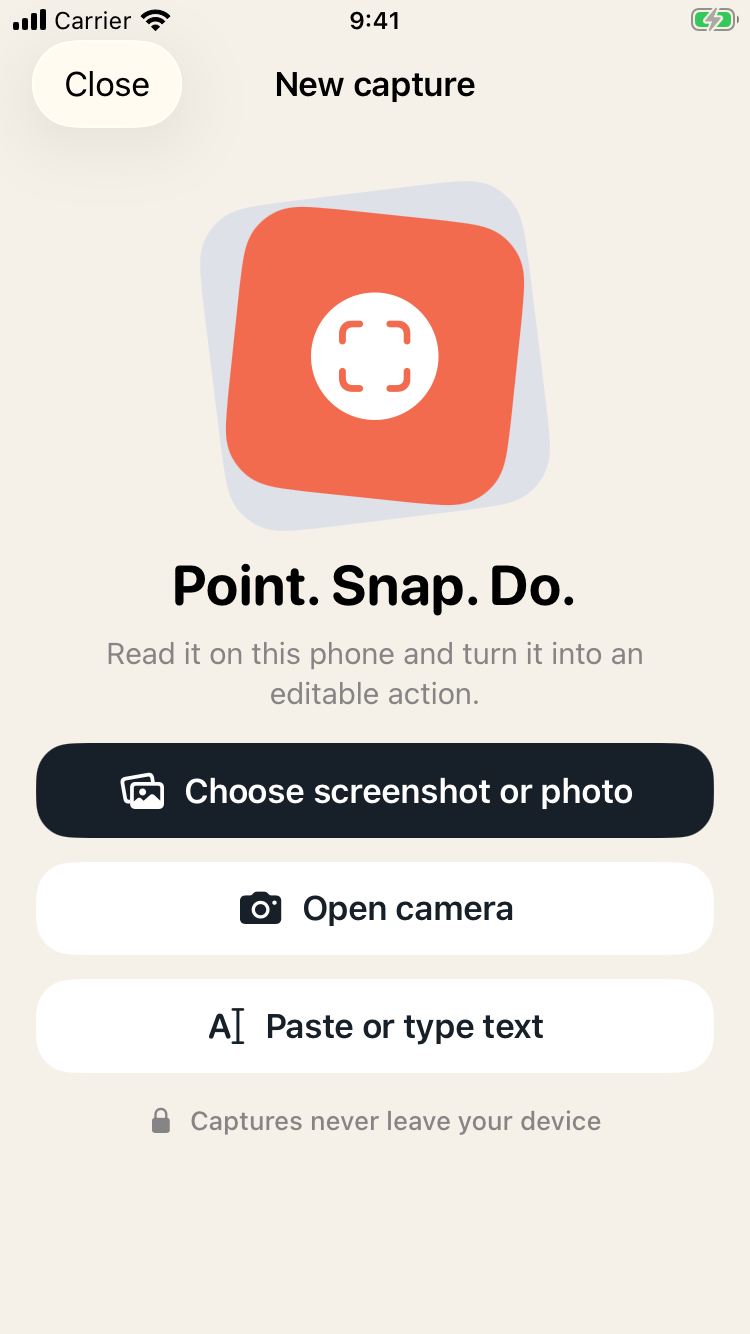
- Pick a screenshot or photo, use the camera, or paste text.
- Review. SnapDo reads the details and suggests a template, for example an event with title, time and place filled in. You can choose a different one from all 96.
- Edit any field that is wrong.
- Save, share, or add to Calendar or Reminders.
The difference from doing it by hand is the middle step: the details arrive already sorted into fields, so you are checking, not typing.
A weekly clear-out
- Open the Screenshots album.
- For each one from the past week: act, convert or delete.
- Anything older than a month that you have not needed: delete.
Five minutes on a Sunday keeps the album near empty, and an empty album makes the next screenshot noticeable. Paper works the same way: see turning paper notices into tasks.
Privacy
Everything runs on the iPhone. SnapDo uses Apple's Vision framework to read text, barcodes and visual labels, and its own local rules choose a template. Nothing is uploaded, there is no developer server and it works in airplane mode. On eligible newer iPhones, Apple Intelligence can optionally tidy titles and summaries, also on the device.
Screenshots often contain messages, addresses and order details. Reading them on the device means none of that goes to a server.
What SnapDo does not do
- You review every action. Text recognition makes mistakes with handwriting, glare and small print. Check dates and amounts before saving.
- It is not a task manager. It creates the action and hands it to Reminders, Calendar or wherever you share it.
- iPhone only.
- No cloud sync service of its own, by design.
Price
SnapDo is a free download for iPhone. The first five saved actions are free, with every template included. After that, a one-time $9.99 unlock gives an unlimited private library and unlimited Shortcuts automations, restorable across your Apple devices. There is no subscription, no account and no usage credits.
Common questions
Does SnapDo upload my screenshots?
No. Recognition runs on the iPhone and works offline.
Can it add events to Apple Calendar?
Yes, and items to Reminders.
Does it work with pasted text?
Yes. You can paste a message instead of using an image.
Is it a subscription?
No. Five saved actions are free, then a one-time unlock.
Does it need a new iPhone?
No. The full offline engine runs on every supported iPhone, including iPhone SE (3rd generation).
Turn the next screenshot into something you will actually do: Get SnapDo free.