PHOTO TO ACTION · SNAPDO
Turn a photo of class notes into a study checklist
A handout or classroom whiteboard can hold several kinds of information at once: facts to learn, tasks to complete and dates to remember. Separate them before they become one long, confusing list.
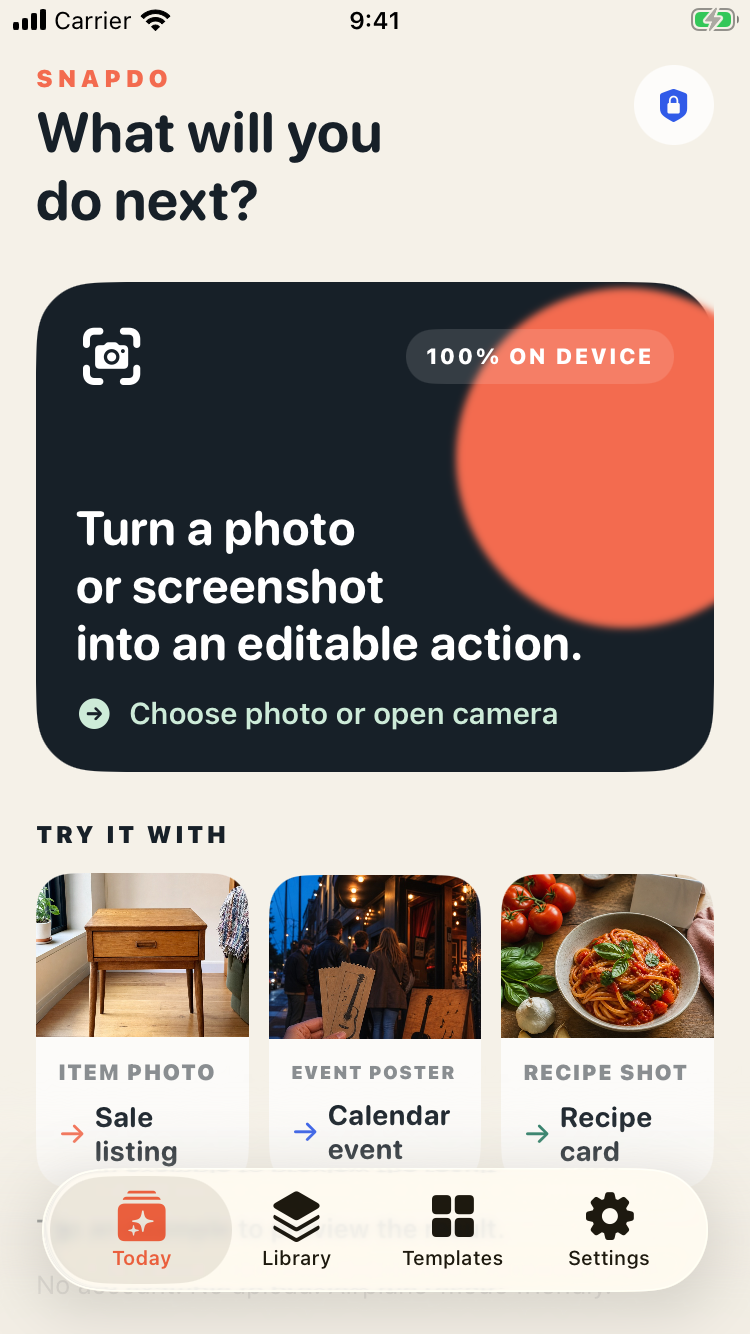
Capture a readable source
Flatten the page, move into even light and keep the camera parallel to the text. For a whiteboard, capture it before it is erased and include enough of the board to preserve headings and context. One clear image is easier to review than a gallery of nearly identical shots.
Separate facts from actions
OCR can recognize words, but it cannot decide what your teacher meant or which lines deserve a reminder. Review the result and sort it into three buckets:
- Study: concepts, terms or examples to revisit.
- Do: homework, reading or preparation that needs an action.
- Remember: a date, room change or material to bring.
Keep the original image nearby until you have checked names, numbers and due dates. This is especially important when punctuation or handwriting changes the meaning.
Turn broad instructions into the next action
“Study chapter four” is hard to start. “Review pages 42–50 and write down three questions” is clearer. Break large assignments into a first step you can complete, but do not invent details that were not on the handout. Add a due date only when the source states one or you have confirmed it yourself.
Review before adding reminders
Before exporting tasks into a calendar or reminder list, check that each item is accurate, specific and still relevant. Remove duplicated instructions and leave reference material as notes rather than making every line a task. A short, trustworthy list is better than importing the whole page unchanged.
SnapDo is designed for turning photos and screenshots into editable actions on iPhone. Compare this flow with the whiteboard-to-action guide or learn how to turn screenshots into tasks.
Keep the workflow private and in your control
Class notes can include names or personal details. Check how your chosen app handles recognition and storage, and crop out information you do not need. Treat extracted text as a draft: you decide what becomes a task and what stays in the source photo.
See SnapDo’s current features before downloading. The App Store page has the current compatibility and purchase details.
Make the next step visible
Capture once, review carefully, then keep only the actions you can actually use.
What students photograph, and what it should become
| Photo | Becomes | Tip |
|---|---|---|
| Syllabus or module outline | Checklist of topics | One item per topic, with the exam date at the top |
| Whiteboard after a lecture | Summary points to review | Photograph before it is wiped; check formulas by hand |
| Assignment brief | Tasks with the deadline | Add your own earlier draft deadline |
| Reading list | Checklist | Tick as you go |
| Timetable | Calendar events | Check rooms and times after the scan |
| Textbook exercise list | Practice checklist | Split by week |
A revision checklist that works
- List topics, not chapters.
- For each, add three states: read, summarised from memory, practised.
- Order by exam weighting and by what you find hardest.
- Put the hardest first in each session.
Things to watch
- Handwriting, equations and symbols are often misread. Check them.
- Photograph your own notes and public handouts; ask before photographing other people's work or slides marked not for sharing.
- The first five saved actions in SnapDo are free, then it is a one-time $9.99 unlock. Everything is processed on the iPhone.
A start-of-term routine
- Photograph each module outline and turn it into a topic checklist.
- Photograph the assessment schedule and add every deadline to your calendar, with your own draft deadline a week earlier.
- Each week, photograph the board or key slides you want to review and turn them into a short list.
- Before exams, use the topic checklists to plan revision.
An hour in week one saves the scramble in week ten.
Group projects
Photograph the brief and the notes from your first meeting, turn them into a task list with a name against each item, and share it with the group the same day. Most group work goes wrong at the point where everyone thought someone else had written it down.
Questions people ask
Does it read handwritten notes?
Clear handwriting, usually. Check anything important.
Does it work in a lecture hall with no signal?
Yes. Processing is on the iPhone.
Can it make flashcards?
It makes editable actions and checklists from 96 templates. Check the template list in the app for what suits your subject.
Is my coursework uploaded?
No.