Apps & Tools
Office Party Photo Booth: A Simple Setup for a Small Team
Set up a low-fuss photo booth for an office party: choose an accessible spot, make participation optional, explain where images go and test the phone workflow first.
Published September 21, 2026 · Michael at Yuzool
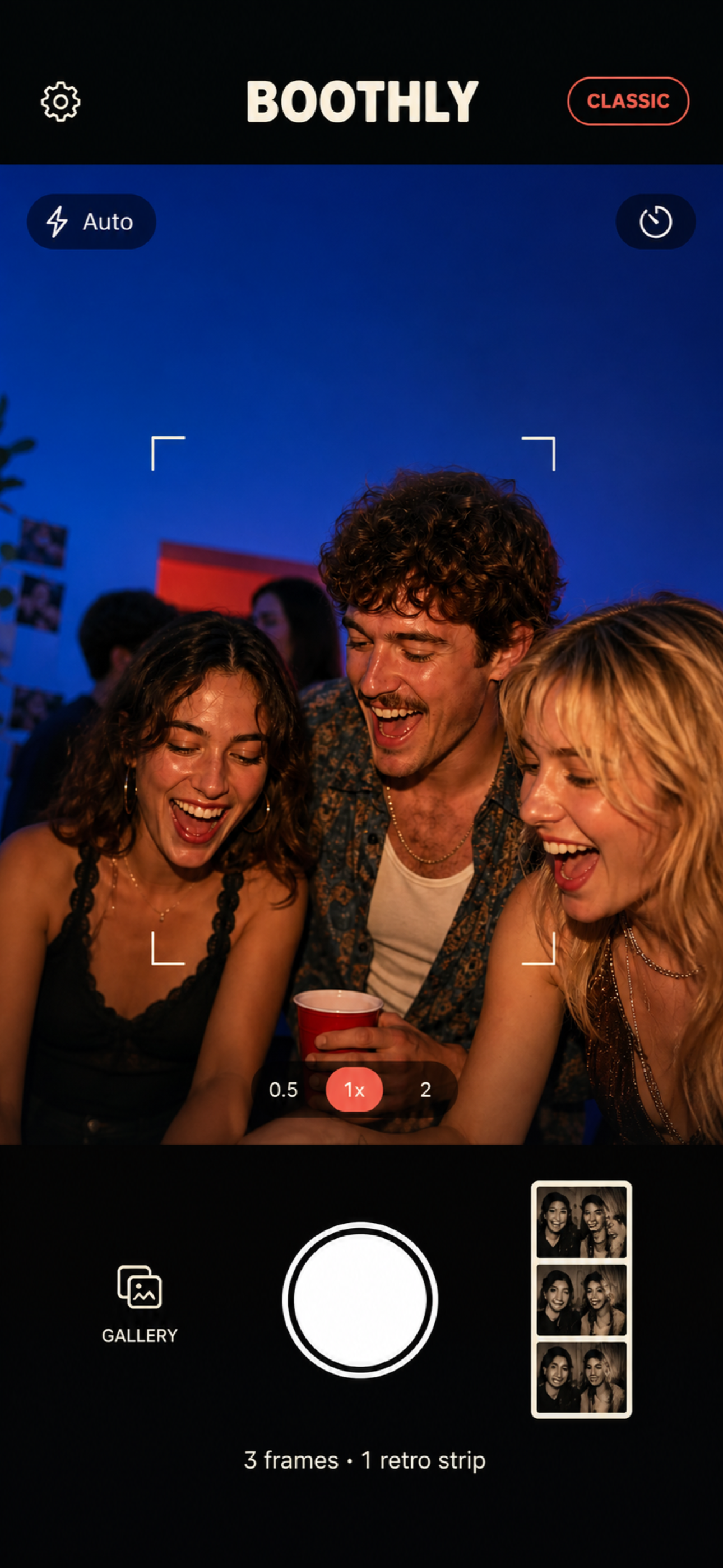
A photo booth at an office party works best when it feels like an invitation, not a team-building assignment. Keep the setup visible but out of the way, give people a clear choice about joining, and explain what happens to the photos before anyone takes one.
Find an accessible, low-pressure location
Choose a spot with enough room for a few colleagues, but do not place it where people must pass through to reach food, restrooms or the exit. Make sure the area is reachable for guests with mobility needs and has enough light for the phone camera. A simple background helps the pictures look intentional without making the station feel like a staged corporate activity.
Participation should be optional. Avoid putting a camera beside a sign-in sheet or making the photo part of a work task. If the event includes colleagues who do not want to appear in pictures, make it easy to walk past without explanation.
Be specific about privacy and sharing
Before the party, decide whether photos stay with the people who take them or go into a shared company collection. Tell guests plainly. Do not promise that images are private if they will be posted to a shared drive or social account; obtain permission before publishing identifiable photos outside the event.
A photo-strip camera is different from a team gallery. Boothly makes a three-frame strip on the participant’s iPhone that can be saved or shared from that device. It does not automatically collect every colleague’s image in an organizer-owned album. If your goal is a central archive, pair the booth with a clearly explained upload method or choose a service built for collection.
Test the whole experience before people arrive
Check the phone’s battery, camera permissions, screen brightness and network assumptions. Run through the steps from the guest’s point of view: find the instructions, open the camera, take a strip, and understand how to keep it. If you use Boothly’s App Clip with a QR code, test that code on a compatible iPhone and provide another activity for colleagues using Android or a device that cannot open the Clip.
Keep instructions short—something like “Scan on iPhone, take three frames, save your strip.” Put the code at a comfortable height and leave enough room for a small group to fit in the frame. Assign one host to check the setup occasionally rather than asking every guest to troubleshoot it.
Make the station suit your workplace
Skip props or prompts that could embarrass someone or pressure colleagues to disclose personal information. Neutral props, a simple “best team moment” prompt or no prompt at all are safer choices. If the workplace has a photo policy, follow it and tell guests how to contact the organizer about a picture they want removed from a shared destination.
For a personal iPhone photo-strip activity, learn about Boothly and download it from the App Store. If you are actually looking to gather everyone’s event images, first review the differences between a booth and a shared guest album.