Apps & Tools
How to Turn Screenshots into Tasks on iPhone
A practical workflow for turning screenshots, photographed notes and copied text into clear actions without letting the camera roll become a second to-do list.
Published August 29, 2026 · Michael at Yuzool
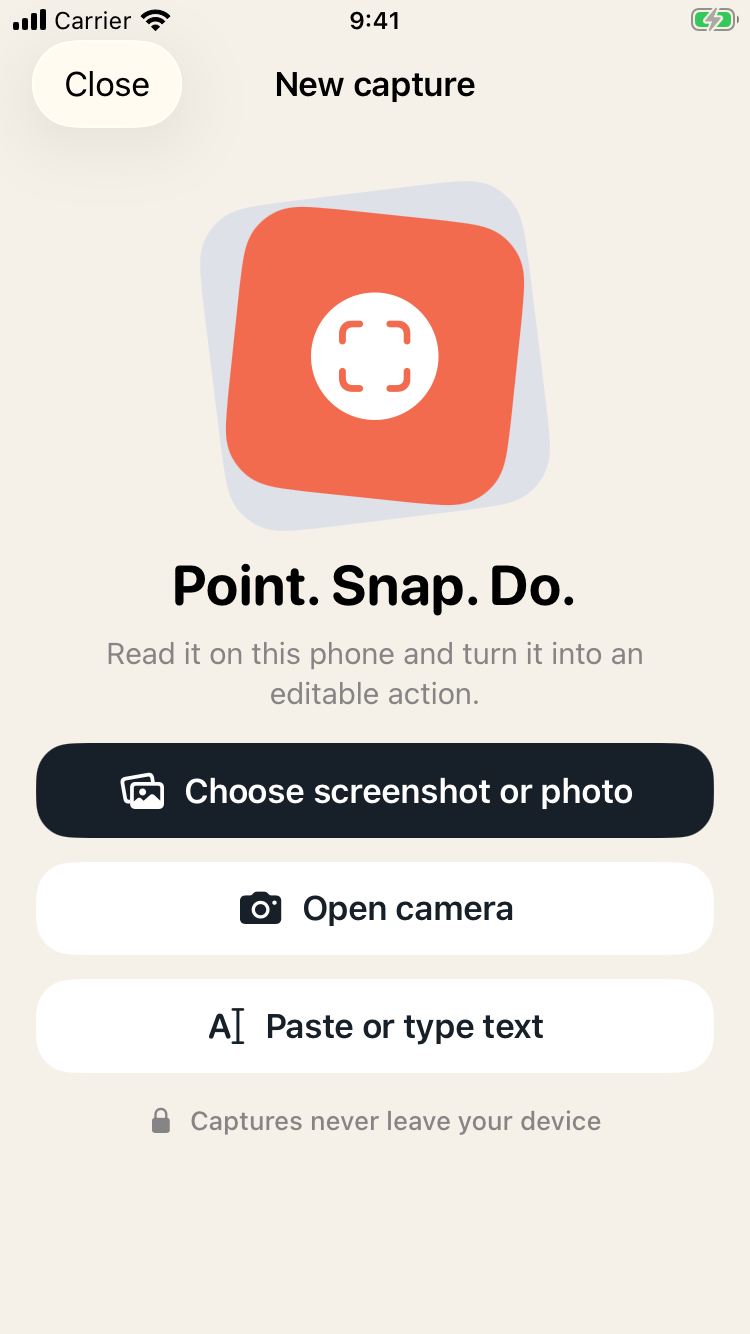
Screenshots are one of the most useful temporary tools on an iPhone. They are also one of the easiest ways to lose an action.
You screenshot the event time, the delivery window, the product you want to compare or the message you need to answer later. Then the screenshot joins a growing camera roll. The information is technically saved, but the task is not.
The fix is not to create a more elaborate screenshot folder. It is to turn the image into an explicit next action while the context is still obvious.
Start by naming what the screenshot means
The image itself is rarely the task. A screenshot of a train booking might mean “add the departure to Calendar.” A screenshot of a product might mean “compare this with the other option.” A screenshot of a conversation might mean “reply to Sam on Friday.”
The first step is to describe the intended outcome in a verb:
- add;
- reply;
- buy;
- return;
- check;
- send;
- remember.
This is why automatic extraction alone is not enough. Reading text from an image can save time, but the useful part is deciding what the text should cause.
Use a review step before saving
Images contain ambiguity. A date might be an event date, a delivery date or the date the screenshot was taken. A price might be the current price or an old promotion. A handwritten list might have one word the camera misunderstood.
A good photo-to-action workflow should therefore produce a draft, not silently create a commitment.
Review the extracted result and ask three questions:
- Is this the right action?
- Is the date or deadline correct?
- Will I know what this means when I see it next week?
That short pause is more valuable than perfect recognition. The goal is not to turn every pixel into data. The goal is to create an action you trust.
Four useful screenshot-to-task examples
1. An event page
Take a screenshot of the event details, then create a calendar action with the date, location and one reminder. Keep the screenshot as context if you need it, but do not rely on reopening the image to remember the appointment.
2. A shopping decision
Turn a product screenshot into “compare price and return policy” rather than “buy this.” A clear research action leaves room for a better decision.
3. A handwritten note
Photograph the note and convert it into a checklist. Keep the original nearby until you have checked that the important words came through correctly.
4. A receipt
Use the receipt to create an expense, reimbursement reminder or return-by date. The total is only one part of what the receipt means.
Keep the workflow private and small
Screenshots often contain personal details, addresses, order numbers and conversations. For a small utility, local processing and no account can be meaningful product features rather than marketing decoration.
SnapDo is built around private iPhone capture, offline templates and editable actions. It supports the practical middle step between “I should do something with this” and “the task is now somewhere I will actually see it.”
That middle step is where many productivity systems become too heavy. You do not need a new workspace for every screenshot. You need a reliable way to decide what the screenshot is asking of you.
Make the camera roll temporary again
The camera roll works well as an inbox. It works badly as a task manager.
Once a screenshot becomes a calendar event, reminder, note, expense or clear follow-up, delete the image or keep it only as supporting context. The point is not to organise the archive forever. The point is to stop asking your memory to search it.
The next time you screenshot something “for later,” give later a verb. That small act is usually enough to turn a piece of visual clutter into a decision you can finish.