Makers & Design
How to Write a Help Center Article People Can Follow
A practical structure for writing help-center articles that answer one question, guide each action, cover likely snags and stay maintainable for a small software team.
Published September 17, 2026 · Michael at Yuzool
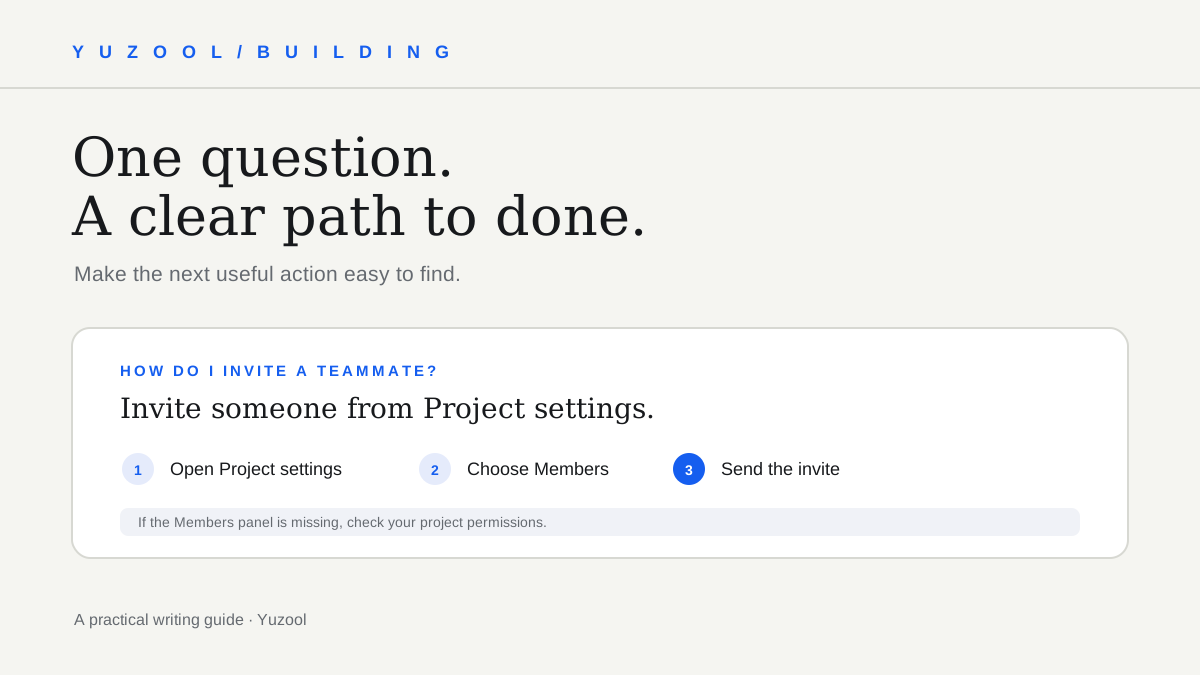
A helpful support article lets someone finish one task without needing the author beside them. It should answer the question they arrived with, show the actions in the order they need them, and tell them what to do when a step does not match their screen.
For a small software team, the challenge is not writing more documentation. It is turning repeated questions into a small library of accurate, findable answers that someone can keep current.
Start with a real question
Choose a question that customers actually ask, not a feature you want to describe. Look for repeated support emails, onboarding calls, search terms, or places where people stop during a task. Phrase the article around the user’s job: “How do I invite a teammate?” is more useful than a page titled “Collaboration.”
If the question is too broad, split it. “Manage your account” might contain separate jobs for changing an email address, resetting a password and deleting an account. Each deserves its own instructions if the steps or consequences differ.
Before drafting, write one sentence that describes the outcome. If you cannot tell whether the article succeeded, it probably needs a narrower scope.
Use a title the reader might search for
Prefer the words a customer uses over internal product language. If your team calls a feature “Workspaces” but customers ask how to “start a new project,” include the familiar phrase in the title or opening text.
Avoid clever labels that hide the task. “Getting started” is a section, not a useful answer to a specific question. Make related articles easy to distinguish by including the action or object, such as “Export a project as a PDF” rather than “Exports.”
Answer the question before giving background
Open with a direct, short answer and the condition that matters. For example: “You can invite a teammate from the project’s Members panel. You’ll need permission to manage members.” That lets a reader confirm they are in the right place before following steps.
Move history, rationale and related features lower on the page. The user who is stuck should not have to read the product philosophy before finding the button they need.
Write steps as actions and results
Give one action per step and use the labels the interface shows. A good step pairs the action with a visible result:
- Open Project settings.
- Choose Members.
- Select Invite and enter the person’s email address.
- Choose Send invite. The person appears as Pending until they accept.
Keep details such as permission requirements or required account state near the step where they matter. Avoid combining a chain of clicks with several decisions into one long sentence.
If you use screenshots, capture the current product, crop to the relevant area and add a short explanation. Do not rely on color alone to point to a control, and remove customer names, email addresses or private data from examples.
Cover the likely snag—not every theoretical edge case
Think about where a reader could get stuck: the button is missing, the invite already exists, the action is unavailable to their role, or the page looks different after an update. Include the most common or consequential case and explain the next useful action.
Keep troubleshooting honest. If you do not know why something failed, do not invent a cause. Say what information to gather and how to contact support. Link to another article when it fully answers a separate question; do not turn one page into an unstructured list of every possible problem.
Test the article with someone unfamiliar with it
Give a teammate or a new user the article and ask them to complete the task without coaching. Watch where they pause, which terms they search for and whether the result matches the opening promise. If they need the author to translate a step, rewrite that step.
Check the article on a phone as well as a larger screen. Short paragraphs, descriptive headings and compact steps make the page easier to scan, especially when someone is switching between the instructions and the product.
Make the article maintainable
Include an owner or review trigger in your team’s documentation process. Update the article when the interface label changes, a permission rule moves, or the workflow’s outcome is different. A visible “last updated” date helps only if someone actually checks the content.
When a support question reveals a product defect rather than a documentation gap, capture it separately. The bug report template can help your team preserve the starting state, reproduction steps and expected result.
A simple help article outline
Title: How do I [complete one task]?
Short answer: State the outcome and any prerequisite.
Steps: One action and result per step.
If it does not work: Cover the most likely snag and next action.
Related: Link only to the next question a reader is likely to have.
Owner/review trigger: Note what product change should prompt a check.
A help center earns trust by being right at the moment someone needs it. Start with the questions customers already ask, write the shortest complete route to the result, and keep the instructions close to how the product actually behaves.