Apple & Mac
How to Organize Screenshots on Mac by Project
Stop letting screenshots pile up on your desktop. Set a Mac save location, use a project-and-date folder structure, and name important captures so they are easy to find.
Published September 14, 2026 · Michael at Yuzool
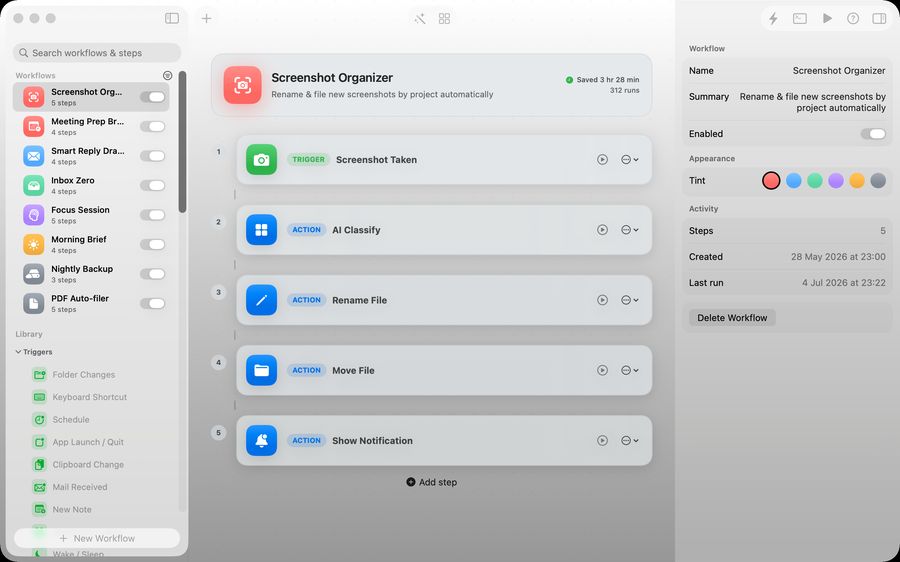
Screenshots are quick to take and surprisingly hard to find again. A desktop full of files named with timestamps is fine for a one-off capture, but it becomes a problem when you are comparing designs, collecting bug evidence or preparing a client handoff.
The fix is a small filing routine: choose a predictable save location, sort by project and date, and rename only the images that you will need to search for later.
Choose a consistent save location
On a recent Mac, press Shift–Command–5, open Options, and choose where screenshots should be saved. Apple’s Screenshot guide explains the save-location choices and the floating thumbnail workflow. If you prefer the default desktop, you can still drag a screenshot thumbnail into a project folder after capture.
Pick one home that makes sense for your work, such as Pictures/Screenshots. Avoid splitting captures unpredictably between Desktop, Downloads and a cloud folder; the system only helps if you can remember where to look.
Use a folder structure that answers two questions
When you search later, you usually need to know both which work the screenshot belongs to and when it was taken. A simple structure can make both visible:
Screenshots/
  Client-Atlas/
    2026-09/
  Yuzool-site/
    2026-09/
  Receipts-and-admin/
If you work on just a few projects, one folder per project and a month subfolder is enough. If you capture several states in a single session, make a dated session folder. Do not create five levels of folders for a workflow you will use twice a month.
Rename the captures that carry meaning
Keep the system-generated filename for temporary captures. Rename a file when it records a decision, a bug or a version you expect to compare later. A useful pattern is:
YYYY-MM-DD-project-screen-state.png
For example: 2026-09-14-atlas-checkout-empty-state.png or 2026-09-14-yuzool-mobile-nav-before.png. Put the date first so files sort chronologically. Use a short project label and describe what the image shows, not what you hope it proves.
If you are collecting before-and-after states, keep the pair together and use matching names. Add before and after only when the distinction matters. Avoid personal information in filenames if the folder might be shared.
Separate working evidence from material you will share
A screenshot for your own debugging can contain details that should not be forwarded. Before sending a capture, crop irrelevant areas, remove names or account data that the recipient does not need, and check that the image does not reveal another customer’s information. Keep an untouched original only when you have a legitimate reason to preserve it securely.
For product work, attach the capture to a ticket or short note with the device, page and steps that produced it. A screenshot without context can show what happened but not how to reproduce it. A two-line note often makes the file much more useful.
Automate only the repeated part
Start manually for a week. Notice which step is annoying more than once: moving the file, adding a date, or creating a project folder. Then automate that one step instead of building a complicated system around a habit you have not tested.
The Mac file-workflow guide has ideas for choosing small, repeatable automations. Relay for Mac can help with screenshot organization when the same capture-and-file routine keeps recurring.
The goal is not a perfect archive. It is being able to find the few screenshots that matter without searching the entire Desktop. One default location, one folder rule and descriptive names for important captures are usually enough.