Apps & Tools
How to Turn an Event Flyer Photo into a Calendar Event on iPhone
A practical way to move an event date, time and location from a flyer or screenshot into an iPhone calendar entry, then check the details before saving.
Published October 7, 2026 · Michael at Yuzool
An event flyer can be easy to save and surprisingly easy to forget. The date is in a poster, the address is in a screenshot and the start time may be buried in a long message. Turning that image into a calendar entry gives the information a useful place—but it is worth checking the extracted details before you rely on them.
Start with the clearest source image
Use the original image or a clean screenshot rather than a photo taken at an angle. Make sure the event title, date, time and venue are visible. If the flyer has several dates, crop or select the part that applies to you so the wrong session is not mistaken for the event you intend to attend.
Look for details that image recognition commonly confuses: 1 and 7, a.m. and p.m., weekday and calendar date, or a venue name that is also a street name. If the organizer has posted a current event page, use it to resolve ambiguity instead of guessing.
Review the fields before saving
After extracting the event, check each field independently:
- Title: use the event name you will recognize in a busy calendar.
- Date and time: confirm the year, time zone and whether the flyer lists doors-open or start time.
- Location: check the full address and building or room details.
- Notes: keep useful instructions such as registration details or what to bring.
- Calendar: choose the calendar you actually review, and add an alert if you need travel time.
Treat extraction as a draft, not as confirmation. The person using the phone is the final reviewer, especially if the image includes multiple dates or small print.
Add the entry to the right calendar
If the event is personal, add it to the calendar you use for personal plans. If it belongs to work or a shared household schedule, choose that calendar instead. Avoid creating duplicate events when the organizer has already sent a calendar invitation; accept or update the existing invitation where possible.
Add only the reminder that helps you act. For a nearby event, a short alert may be enough. For a venue that requires travel, set an earlier reminder and include the address so you can plan the journey.
Keep the image for context, not as the reminder
The original flyer can still be useful for ticket details, dress code or organizer contact information. Keep it in Photos or attach it to the event if your calendar supports that workflow, but do not depend on finding the image later to remember the date. The calendar entry should contain the essential facts in readable text.
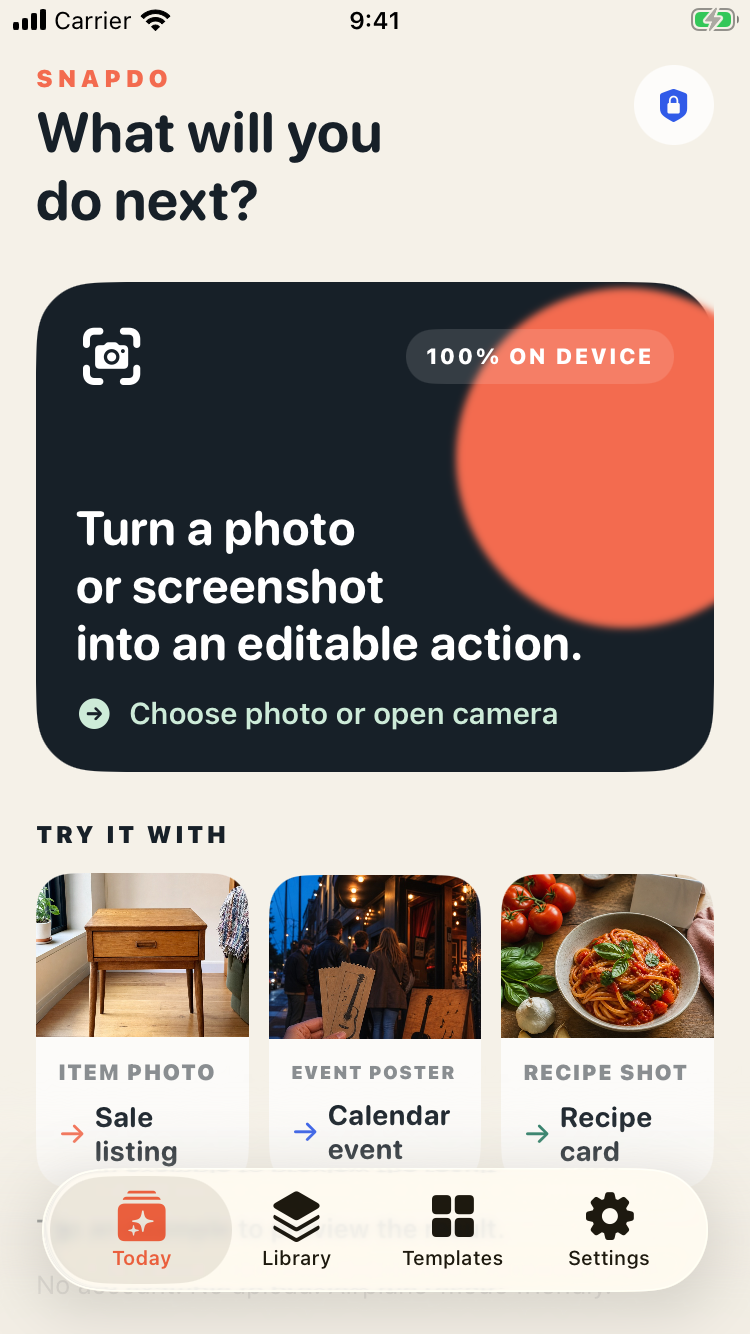
SnapDo helps turn photos and screenshots into editable actions on iPhone, including calendar-style next steps. Review the suggested information before saving, and see the dedicated photo-to-calendar workflow for more on this use case.
A quick check before you leave
Open the saved event once and verify the date, time, location and alert. If the organizer changes the schedule, update the calendar entry and remove any duplicate. This final check is small, but it is what turns a captured flyer into a dependable plan.