Apps & Tools
Best Receipt Scanner for Freelancers on iPhone: What to Look For
Compare the features that matter in an iPhone receipt scanner for freelancers: fast capture, manual entries, project context, privacy and useful expense reports.
Published September 24, 2026 · Michael at Yuzool
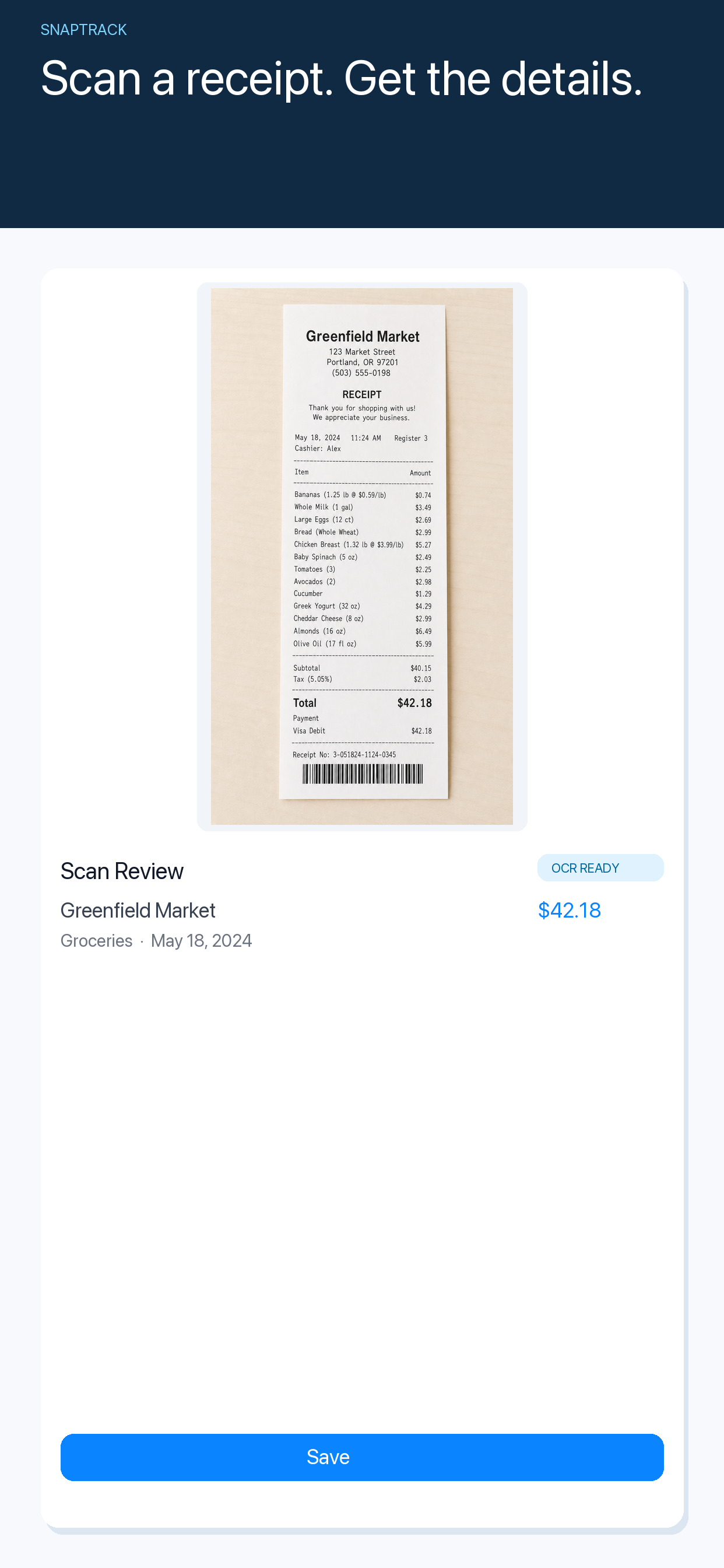
The best receipt scanner for a freelancer is not necessarily the one with the most impressive document-processing demo. It is the one you will actually open while leaving a client meeting, remember when a paper receipt is fading in your bag and trust when it is time to prepare an expense report.
Freelancers need a slightly different workflow from a large finance team. You may be tracking expenses across several clients, working in different currencies, paying with cash occasionally and trying to keep your records useful without turning every purchase into an accounting project. An iPhone is already with you, so the right receipt app should make capture quick and context clear.
Start with the capture moment
A receipt scanner should make the first step almost boring. Open the app, frame the receipt, check the result and move on. A good scan recognises the merchant, date, total and currency while keeping the original image available for verification.
The camera should work in ordinary conditions: a dim restaurant, a crumpled taxi receipt or a long receipt on a counter. Automatic cropping helps, but it should not prevent a quick manual correction. If the scan is wrong, a fast edit is more useful than a complicated rescan process.
SnapTrack is designed around this capture moment. It is an iPhone receipt and travel expense tracker for people who want to turn a receipt into a useful record before the detail disappears. You can see SnapTrack’s full app page and keep the free tools collection nearby for other small workflow jobs.
Keep manual expenses in the same place
Not every expense has a receipt. A cash payment, mileage estimate, bank fee or small digital purchase may need a manual entry. The app should not force you to use a separate notebook for those items.
Look for a quick manual form with the same fields as a scan: amount, date, category, currency, project and note. Consistency matters because the useful output is the complete expense record, not simply a folder of photographs.
Add project context while you still remember it
The question “what was this for?” is easiest to answer immediately. A receipt from a hardware shop might be for one client, a conference or your own business. Add that context at capture time, even if it is only a short project name.
This is especially important for freelancers with multiple clients. An app that stores only a total and merchant name may look tidy but still leave you doing detective work at the end of the month. Searchable project labels and notes make the record useful later.
Look for currency and travel support
Travel expenses create extra friction because the receipt may use a different currency from the one in your bank account or invoice. Check whether the app keeps the original currency visible, lets you edit the exchange-rate assumption and separates the converted total from the source amount.
You do not need a system that pretends exchange rates are perfectly simple. You need a record that makes the assumption visible so you can explain it later.
Privacy is part of the feature set
Receipts can reveal client names, addresses, travel dates and purchasing habits. Before choosing an app, read how images and extracted text are handled. Is an account required? Does the app upload every image? Can you remove a record? Is the original receipt kept so you can check an OCR result?
The best answer depends on your workflow, but it should be an answer you can understand. A small, focused app can be preferable when it makes the boundary between your phone and a remote service clear.
The useful test: can you find one expense later?
Before committing, test the whole loop with five receipts. Capture a normal receipt, a poor one, a foreign-currency receipt, a manual expense and a receipt connected to a client project. Then search for each one a few days later.
If you can answer “what was this, when did it happen and which project was it for?” without opening a spreadsheet, the app is doing its job. If the process creates another inbox that needs weekly cleaning, it may not be the right fit.
For a lightweight iPhone workflow, try SnapTrack and keep the original receipt until the expense has been checked. A scanner is most valuable when it reduces the distance between spending money and having a reliable record of it.